- Documentation
- Overview
- Guest guide
- Search on the map
Search on the map
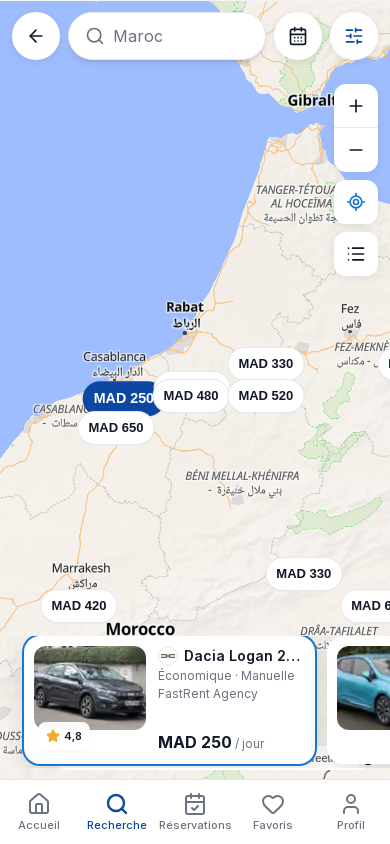
The full-screen map of available cars: floating place search, prices on the pins, car cards to swipe and a brand filter.
The Map view shows the available cars where they are, with their price per day on each pin. On a phone, the map fills the screen: the search floats at the top, the tools sit on the side and the cars scroll at the bottom. On a computer, the list is on the left and the map on the right. You do not need an account to use it.
Steps
- In Search, choose the place and the dates, then tap Map view. From the results list, tap Map view at the bottom of the screen.
- Move the map with your finger, zoom with two fingers or with Zoom in and Zoom out.
- Tap a price pin: that car moves to the centre of the strip at the bottom.
- Swipe the cards in the strip: the pin of the car in the centre is highlighted on the map.
- To go somewhere else, tap the search at the top, type a city, a neighbourhood or an address, then pick a suggestion.
- Tap a car card to open its page and book.
Map screen
| Field | Required | Values or format | Example | What it means |
|---|---|---|---|---|
| Back | No | One tap | Back | Goes back to the previous screen. |
| Floating search | No | City, neighbourhood or address | Casablanca | Shows the current city (or All cities). Tap it to search for another place. |
| Edit search | No | Calendar button | 26 to 29 October | Opens the place and dates of the search. |
| Filters | No | Button with the number of active filters | Filters, 2 active | Opens the filters: brand, category, price range, transmission, fuel, seats, insurance included, sort. |
| Zoom in and Zoom out | No | Two buttons | Zoom in | Bring the map closer or further. |
| Locate me | No | One tap, then permission | Locate me | Centres the map on your position. |
| List view | No | One tap (on a phone) | List view | Goes back to the results list without searching again. |
| Price pins | Display | Price per day in the agency's currency | MAD 250 | An available car at that spot. The chosen pin is highlighted. |
| Cars on the map strip | Display | One card per car: photo, rating, make and model, category and gearbox, agency, price | Dacia Logan 2023, Economy · Manual, FastRent Agency, MAD 250 / day | Swipe to go from one car to the next. With dates, the total shows too: "MAD 750 total (3 days)". |
| Source credit | Display | Fixed text | © OpenStreetMap contributors | Where the maps come from. |
After the action: tapping a car card opens its page. Your filters and dates stay the same when you switch between the map and the list.
Search for a place on the map
Search on the map
| Field | Required | Values or format | Example | What it means |
|---|---|---|---|---|
| City, neighbourhood, address | Yes | At least 2 characters | gare | Suggests matching places. With fewer than 2 characters: "Type at least 2 characters." |
| Suggestions | No | Place name, neighbourhood and city | Gare Casa Voyageurs, Casablanca | Tap a suggestion to go there. If nothing matches: "No place for “…”". |
| Clear | No | One tap (cross) | Clear | Removes the chosen place from the search. |
After the action: the map moves to the chosen place and drops a pin there ("Pin dropped: …"). If that place is a city served by DriveGo, it becomes the city of your search and its cars show.
Filter by brand
In Filters, the Brand section shows the logos of the most common brands. Tap a logo to see only that brand; tap it again to remove the filter. All brands opens the full list with a search (Search a brand). Changing the brand removes the model filter.
Map filtered by brand
| Field | Required | Values or format | Example | What it means |
|---|---|---|---|---|
| Brand | No | A brand logo, or All brands | Dacia | Keeps only cars of that brand, on the map as in the list. |
| Filters (counter) | Display | Number of active filters | Filters, 1 active | Reminds you that a filter is applied. |
| Price pins | Display | Price per day | MAD 250 | The cars of the chosen brand. |
After the action: in the list, the filter shows as a chip with the brand's name; tap it to remove it. If no car matches: "No car matches", with Clear filters.
What happens next
- The car's page shows its photos, features, agency, insurance, deposit and the price for your dates. See Guest guide.
- To book, tap Book now on the car's page. Without an account, sign-in is asked at confirmation. See Book a car.
- Companies have the same map in their space, with their company prices. See Booking several cars.
Troubleshooting
| Situation | What is happening | What to do |
|---|---|---|
| No pin on the map | No car matches the area, dates or filters. | Zoom out, change city, widen the dates or remove filters. |
| A car is in the list but has no pin | The car has no known location or no price for these dates. | Open it from the list. |
| Locate me does nothing | Location is refused for DriveGo. | Allow it in the browser settings, or search for the place. |
| "No place for “…”" | The place you typed is not recognised. | Try the city name or a well-known place nearby. |
Updated on 25 October 2026Markdown version