- Documentation
- Overview
- Individual customer
- Report an accident
Report an accident or damage
During the rental, report an accident or damage from your booking: emergency numbers, damaged areas, photos, sending even without network, then following the status.
During your rental, you report an accident or damage to the agency straight from the booking: what happened, the damaged parts of the car, the place and photos. The agency is alerted straight away. An employee then checks the car area by area and you follow the outcome on your booking. Nothing is charged when you report.
Before you start
- The Report an accident or damage button appears in the Accident or damage block of the booking details, from the key handover until the car is returned: booking Active, Pick-up or Returning. Before or after, the screen shows "Rental not started or already finished": contact your agency instead.
- The driver of a company booking reports the same way, from the company booking. Their photos are visible to them, to the company administrator and to the agency.
- At least one photo is required. You can attach up to 20 photos and up to 2 videos.
Steps
- Open Bookings, then the current booking. In Accident or damage, tap Report an accident or damage.
- The Your safety comes first screen appears. Get somewhere safe and call the emergency services if anyone is hurt. Then tap Report to the agency.
- Type step: choose An accident or Some damage, then Continue.
- Areas step: tap each damaged part on the car diagram, give the type of damage and the estimated severity, add details and photos of the area if needed, then Save the area. For an accident with no visible damage, go to the next step.
- Details step: check the date and time, give the place (or tap Use my position) and describe what happened.
- For an accident, Accident step: injuries, need for assistance, whether the car can still be driven, police involvement and other vehicles or people involved.
- Photos step: add your photos and videos.
- Send step: read the summary, then tap Send to the agency.
- The Report sent screen shows the reference, for example INC-2026-00012. Tap Back to the booking to follow the status.
Your safety comes first
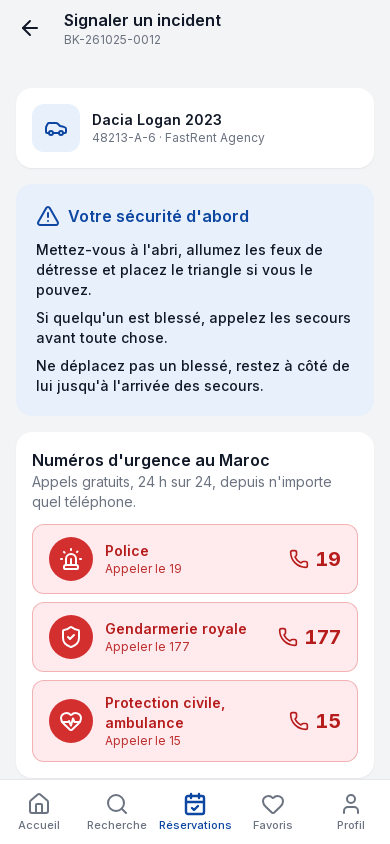
Your safety comes first
| Field | Required | Values or format | Example | What it means |
|---|---|---|---|---|
| Safety advice | No (read only) | Three instructions | "Get somewhere safe, switch on the hazard lights and set up the warning triangle if you can." | Read this before anything else. |
| Emergency numbers in Morocco | No | Police 19, Royal Gendarmerie 177, Civil Protection, ambulance 15 | Call 19 | Each button places the call. Free calls, 24 hours a day, from any phone. |
| Call my agency | No | Call button | FastRent Agency's number | Calls the rental agency directly, when it has a number. |
| Report to the agency | Yes, to report | Button | Report to the agency | Opens the step-by-step report form. |
After the action: the form opens on the Type step. Calls do not create a report: remember to report to the agency as well.
Type: what happened?
Type step
| Field | Required | Values or format | Example | What it means |
|---|---|---|---|---|
| What happened? | Yes | An accident or Some damage | Some damage | An accident: collision with another vehicle, an obstacle or a pedestrian. Some damage: scratch, dent, cracked glass or a damaged part, without an accident. |
| Step indicator | No | Type, Areas, Details, Accident, Photos, Send | Step 1 of 5 | The Accident step only appears for an accident. |
| Continue | Yes | Button | Continue | Greyed out until you choose, with the reason shown: "Choose accident or damage." |
After the action: the Areas step opens. What you enter is kept on the phone at every step ("Draft saved on this phone").
Damaged areas
Areas step and area sheet
| Field | Required | Values or format | Example | What it means |
|---|---|---|---|---|
| Car diagram | Yes for damage | Front bumper, Rear bumper, Left side, Right side, Roof, Windshield, Windows, Wheels and tyres, Interior, Undercarriage | Rear bumper | Tap the damaged part to open its sheet. An equivalent list exists for keyboard use. For an accident with no visible damage, no area is required. |
| Type of damage | Yes | Scratch, Dent, Crack, Broken, Missing, Stain, Mechanical | Scratch | What you see on this area. |
| Estimated severity | Yes | Low, Medium, High, Major | Low | Your estimate is enough; the agency will check it on site. |
| Details | No | Text, 1,000 characters at most | "10 cm scratch under the handle" | Helps the employee find the damage. |
| Photos of this area | No | Photos | 2 photos | They count towards the total of 20 photos. |
| Save the area, Remove | Yes to keep the area | Buttons | Save the area | Adds the area to the list or deletes it. |
| List of reported areas | No | One row per area, with Edit and Remove | "1 area reported" | An incomplete area is marked To complete. |
After you save: the area appears on the diagram in the colour of its severity. Tap Continue to go to the details.
When and where
Details step
| Field | Required | Values or format | Example | What it means |
|---|---|---|---|---|
| Date | Yes | Date, not in the future | 25/10/2026 | Prefilled with today. |
| Time | Yes | Time | 14:30 | Prefilled with the current time. |
| Place | Yes | Address search or position | Morocco Mall car park, Casablanca | Use your position or search for the address. |
| Use my position | No | Button | GPS position | Fills the place with your position. If it cannot be found: "Position not found. Type the address instead." |
| What happened | Yes | Text, at least 10 characters | "I found a scratch on the rear left door when I came back to the car park." | A few sentences are enough, in your own words. |
After the action: Continue leads to the Accident step for an accident, otherwise to Photos.
The accident
This step only exists if you chose An accident.
Accident step
| Field | Required | Values or format | Example | What it means |
|---|---|---|---|---|
| Someone is injured | No | Switch | No | When on, the screen reminds you to call 15 or 19 and the agency is alerted as urgent. |
| I need assistance | No | Switch | Yes | Breakdown service, towing or a replacement car: the agency calls you back. |
| Can the car still be driven? | Yes | Yes or No | No | Helps the agency plan what comes next. |
| The police or the gendarmerie attended | No | Switch | Yes | Shows the next two fields. |
| Police report number | No | Text | PV 1234/2026 | If you already have it; otherwise you can give it to the agency later. |
| Photo of the accident report or police report | No | Photo, Add the document button | Photo of the joint accident report | The official document of the accident. |
| Another vehicle or person is involved | No | Switch | Yes | Adds a Party 1 block. |
| Party: Name, Phone, Number plate, Insurer, Insurance policy number | The name or the plate | Text | Name: Karim Bouaid, plate 12345-A-6 | Add a party for another person, the bin icon to remove one. |
After the action: Continue opens the Photos step.
Photos and videos
Photos step
| Field | Required | Values or format | Example | What it means |
|---|---|---|---|---|
| Counter | No | Number of photos and videos | "3 photos, 0 videos" | Photos taken on the areas are already counted. |
| Add a photo | Yes, at least one | Photo, 20 at most | Overall view of the car | Take the car from a distance and then close up, and the scene if it is an accident. A photo taken with your position is labelled Located photo. |
| Add a video | No | 2 videos at most, 60 seconds and 50 MB each, mp4 format | 20-second video around the car | A refused file shows the reason, for example "Video too long: 60 seconds at most." |
After the action: Continue opens the summary.
Check and send
Send step
| Field | Required | Values or format | Example | What it means |
|---|---|---|---|---|
| Type, Date and time, Place, Areas | No (read only) | Summary | Some damage, 25/10/2026 14:30, Rear bumper | What the agency will receive. |
| Injuries, car can be driven, assistance, police, other parties | No (read only) | Yes or No | Police: Yes · PV 1234/2026 | Only for an accident. |
| Photos and videos | No (read only) | Number | 3 photos, 0 videos | Your attached files. |
| Privacy | No | Text | "Your photos stay private: only you and the rental agency can see them." | For a company, the company administrator can see them too. |
| Back | No | Button | Back | Goes back to the previous step to correct it. |
| Send to the agency | Yes | Button | Send to the agency | Greyed out while a step is incomplete, with the reason, for example "To continue: Add at least one photo." |
After you send: the Report sent screen shows the reference and reminds you: "Nothing is charged at this stage." Without network, the screen shows "Saved, sent when the network is back": the report and the photos leave on their own as soon as the connection returns.
Follow your report
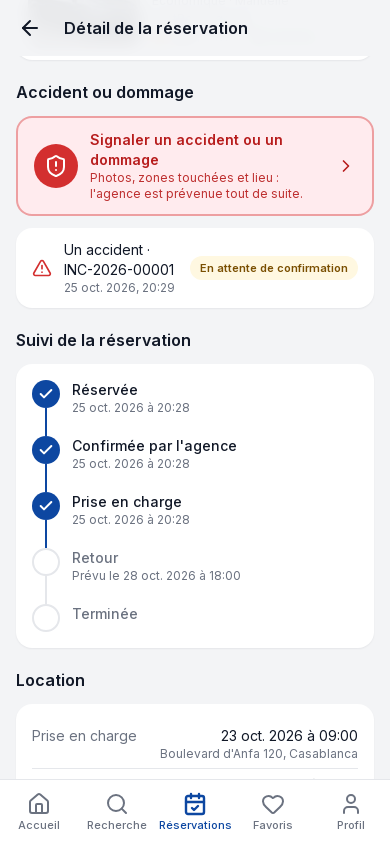
Accident or damage block of the booking
| Field | Required | Values or format | Example | What it means |
|---|---|---|---|---|
| Report an accident or damage | No | Button, visible during the rental | "Photos, damaged areas and place: the agency is alerted straight away." | Opens the Your safety comes first screen. |
| Reports sent | No (read only) | One row per report, with its status | INC-2026-00012 Awaiting confirmation | The status changes once the agency has checked the car. |
| Reports not sent yet | No (read only) | Waiting for network or Sending refused | Waiting for network | A report made without network waits here. If refused, open it to see the reason and tap Try sending again. |
After the action: you are notified when the agency has confirmed or rejected the areas.
| Status | What it means |
|---|---|
| Awaiting confirmation | The agency has received the report; an employee will check the car. |
| Under review | Some areas are checked, the rest will be later, often at the return inspection. |
| Confirmed | Everything you reported is confirmed. |
| Partly confirmed | Part is confirmed, part rejected. |
| Rejected | The agency did not find the reported damage. Each rejection is explained by the employee. |
From a company account
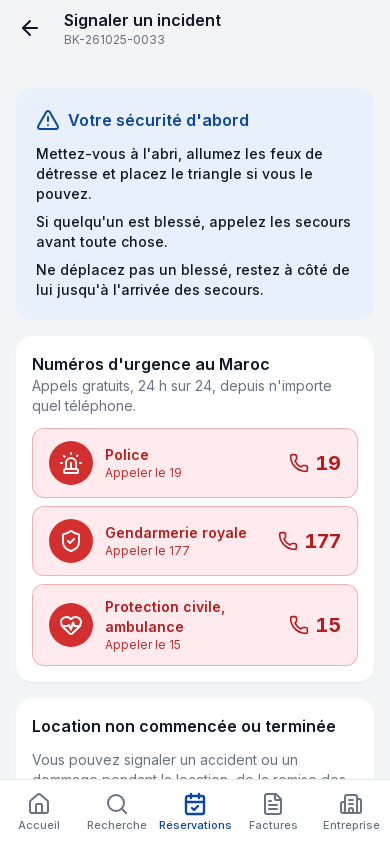
Reporting from a company booking
| Field | Required | Values or format | Example | What it means |
|---|---|---|---|---|
| Your safety comes first screen | No | Same advice and numbers 19, 177 and 15 | Call 15 | Identical to the individual customer's screen. |
| Report to the agency | Yes, to report | Button | Report to the agency | Opens the same step-by-step form, in the name of the booking's driver. |
After the action: the steps are the same. The photos are visible to the driver, the company administrator and the agency.
What happens next
- The agency is alerted straight away. An accident, or a report with injuries, reaches it as urgent. The employee in charge of your pickup or return is alerted too.
- An employee checks each area on the car, confirms, adjusts or rejects it, and adds their own photos. See Confirm a customer report.
- Each confirmed area becomes a damage on the car's record. A confirmed accident opens a nine-stage follow-up case. See Follow customer reports.
- Nothing is charged automatically. If a repair is charged to you later, the line appears on your invoice and you are notified.
Troubleshooting
| Situation | Cause | What to do |
|---|---|---|
| "Rental not started or already finished" | The booking is not in progress. | For anything else, contact your agency. |
| The Continue button stays greyed out | Information is missing. | Read the reason shown under the button, for example "To continue: Give the type of damage of each area." |
| "The date cannot be in the future." | The date or time is later than now. | Correct the date or time. |
| "Video too large: 50 MB at most." | The video is over the allowed size. | Record a shorter video. |
| No network | You are in an area without coverage. | Carry on: "No network: carry on, everything is saved on your phone and will be sent as soon as you are back online." |
| "Sending was refused" | The agency could not record the report; the reason is shown. | Correct it if needed, then tap Try sending again, or contact your agency. |
Updated on 25 October 2026Markdown version