- Documentation
- Overview
- Agency guide
- Follow customer reports
Follow customer reports
Find the accidents and damage your customers reported during their rentals: list by status, details, dashboard tile, then damages or accident case.
Your customers can report an accident or damage during their rental, from their booking. Each report arrives in Customer reports and you are alerted straight away, as urgent for an accident or when someone is injured. An employee, or you yourself, then checks the car area by area. The outcome feeds the car's damages or opens an accident case.
Who sees and who decides
| Role | See the reports | Confirm, adjust or reject |
|---|---|---|
| Agency owner | Yes | Yes |
| Agency manager | Yes | Yes |
| Fleet manager | Yes | Yes |
| Finance manager | Yes | No, read only |
| Agency employee | Yes, from To confirm | Yes |
In read-only mode, the details show: "Read only: confirming is reserved for the owner, the manager and the fleet team."
Steps
- On the Dashboard, tap the "customer reports to confirm" tile.
- In Customer reports, stay on the To confirm tab or search by reference, booking or car.
- Open a report and read the customer's statement, their areas and their photos.
- Confirm area by area yourself, or let the employee do it on the car, for example during the return inspection.
- Once decided, follow the Open damage or Open accident case links for what comes next.
The dashboard tile
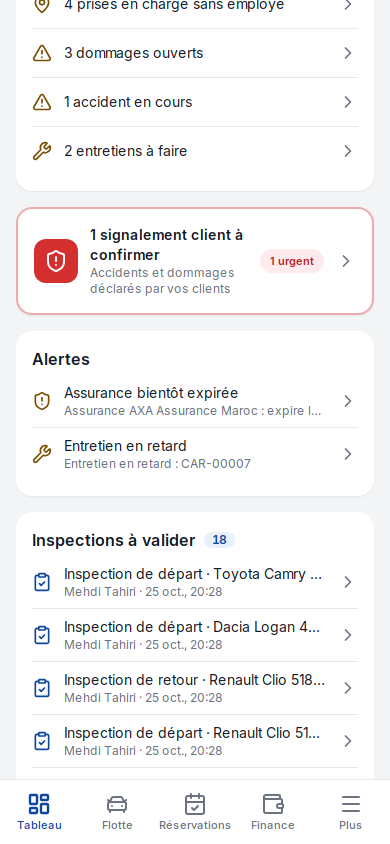
Customer reports tile
| Field | Required | Values or format | Example | What it means |
|---|---|---|---|---|
| Number to confirm | No (read only) | Number | "2 customer reports to confirm" | The reports still open. The tile only appears when there are some. |
| Subtitle | No (read only) | Text | "Accidents and damage declared by your customers" | A reminder of what the list contains. |
| Urgent | No (read only) | Badge | 1 urgent | Accidents and reports with injuries. |
After the action: tapping the tile opens Customer reports.
The list of reports
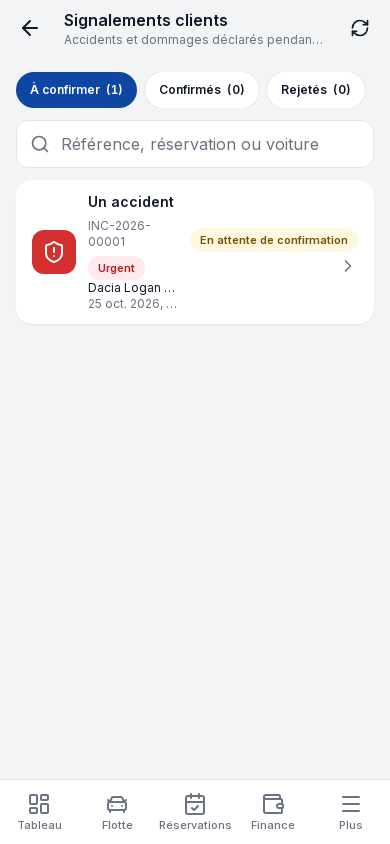
Customer reports screen
| Field | Required | Values or format | Example | What it means |
|---|---|---|---|---|
| Status (tabs) | No | To confirm, Confirmed, Rejected, with the count of each | To confirm (2) | To confirm groups the Awaiting confirmation and Under review statuses; Confirmed groups Confirmed and Partly confirmed. |
| Search | No | Text | BK-240520-7821 | "Reference, booking or car". Clear the search empties the field. |
| Report row | No | Type, reference, car, booking, date, areas, status | An accident · INC-2026-00014 · Dacia Logan · BK-240520-7821 | Open and urgent reports first, then the most recent. |
| Urgent | No (read only) | Badge | Urgent | An accident or injuries. |
| See more | No | Button | See more (12) | Shows the rest of the list. |
After the action: tapping a row opens the details.
Report details
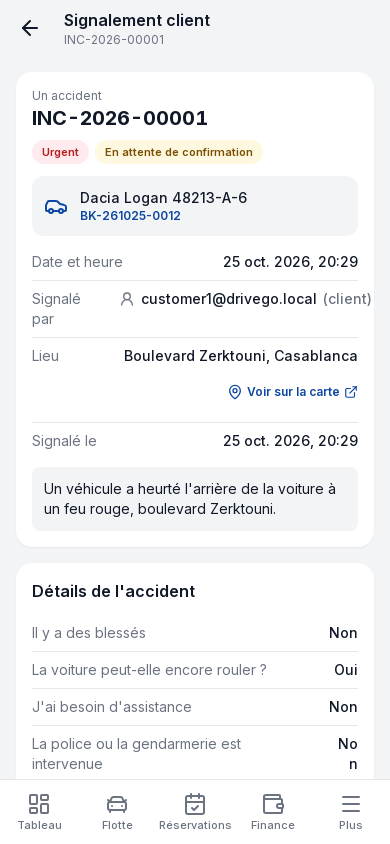
Customer report screen
| Field | Required | Values or format | Example | What it means |
|---|---|---|---|---|
| Date and time, Reported by, Place, Reported on | No (read only) | Text, See on the map link | Reported by: Mehdi Tahiri (company driver) | Who reported, when and where. |
| Accident details | No (read only) | Injuries, car can be driven, assistance, police, police report, other parties | I need assistance: Yes | Only for an accident. |
| Reported areas | No (read only) | Diagram and, per area, Reported by the customer then Agency check | Rear bumper: Scratch, Low; check: Adjust, Medium | Both versions side by side. |
| Customer photos and videos | No (read only) | Photos and videos | Photo 1, Video 1 | In addition to the area photos. |
| Decision per area, Your photos, I confirm the accident, General note, Send my decision | Depending on the decision | As on the employee's screen | Send my decision | Shown while the report is open and your role can confirm. See Confirm a customer report. |
| Outcome | No (read only) | Status, by the name of the person who decided | Partly confirmed by Karim Bouaid | Shown once the decision is made. |
| Open damage, Open accident case | No | Links | Open accident case ACC-2026-00128 | Lead to the damage created for each kept area and to the accident case. |
| Agency photos | No (read only) | Photos | Rear bumper 1 | The photos taken by the person who confirmed. |
After you save: the status changes to Confirmed, Partly confirmed or Rejected, the customer is notified and the report leaves the To confirm tab.
What a report becomes
- Confirmed or adjusted area: it becomes a Reported damage on the car's record, with the customer's and the agency's photos. You then handle it like any damage: review, repair, then charge the customer or not. See Damage.
- Confirmed accident: an accident case opens at stage 1 of the nine-stage follow-up, with the customer's statement and photos on stage 2. See Accidents.
- Rejected area: it stays in the report with the note explaining the rejection; no damage is created.
- Nothing is charged automatically.
Troubleshooting
| Situation | Cause | What to do |
|---|---|---|
| "Read only: confirming is reserved for the owner, the manager and the fleet team." | Your role can view but not decide. | Ask a manager or the car's employee to confirm. |
| "No report to confirm" | No open report. | Nothing to do. |
| "No report matches" | The search finds nothing. | Tap Clear the search or check the reference. |
| "Report not found" | It does not concern your agency or no longer exists. | Go back to the list with Back to reports. |
Updated on 25 October 2026Markdown version